
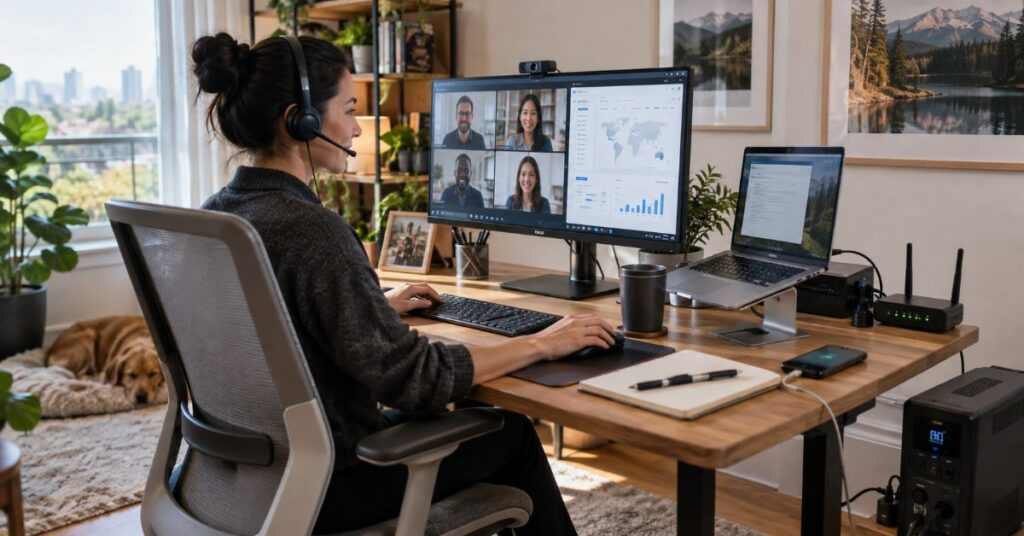
I would build a Remote Work Setup around what can fail during a normal workday, not around what looks impressive in a desk photo. That distinction matters because remote and hybrid work are not disappearing: Gallup’s May 2026 data shows 52% of remote-capable U.S. employees working hybrid and 26% working fully remote, while Stanford’s global survey found work from home had stabilized at 1.27 days per week among surveyed college graduates in 2024/2025 (Gallup, 2026; Aksoy et al., 2025).
The practical implication is simple. A workspace has to survive long sessions, busy video calls, peak-hour internet congestion, security checks, and the occasional outage. A beautiful chair does not fix unstable upload. A faster connection does not fix a laptop placed six inches below eye level. A premium webcam does not help when the room microphone sounds distant or the worker loses power halfway through a client call.
Our SERP review found that most leading pages still organize the topic as a shopping list: desk, chair, monitor, headset, Wi-Fi, software. This guide uses a different order. It starts with the failure that costs the most time or comfort, then shows how to test it, fix it, and know when an upgrade is justified. For call behavior and privacy, our virtual meeting etiquette guide goes deeper into camera norms, AI note-takers, screen sharing, and hybrid meeting fairness.
The Five Failure Points That Matter Most
A good setup is a system. It succeeds only when the weakest part is good enough for the work you actually do. Use five failure points as the diagnostic lens: body, connection, communication, security, and continuity.
Body failure shows up as growing neck, shoulder, wrist, or back fatigue. Connection failure appears as frozen calls, delayed audio, or unreliable cloud tools. Communication failure means people cannot hear, see, or follow you clearly. Security failure exposes work through weak access. Continuity failure appears when power, internet, or a critical service stops and there is no fallback.
Run a 15-Minute Constraint Audit Before You Buy Anything
Start with the job, room, and failure history. A software developer who works mostly in deep-focus blocks needs a different layout from a recruiter who spends six hours on calls. A designer needs more display area than a writer who works comfortably on one screen. A small apartment changes noise and storage decisions. Frequent travel changes how much of the setup should be duplicated or portable.
Write down the last three moments when remote work felt harder than it should have, such as pain after lunch, a dropped 4 p.m. call, echo, glare, or an unavailable authenticator. Those incidents reveal where to spend first.
Rate each failure point from 1 to 5. Fix the highest score first; if two tie, prioritize the one that can stop paid work or create a health or security risk.
Spend in Failure Order, Not Shopping Order
The most efficient budget is not a universal product list. It is a sequence. Stabilize the workday first, then improve speed, then improve comfort and polish.
Divide discretionary spending by bottleneck, not category. Ergonomic problems point to chair fit, input position, and screen height. Meeting problems point to microphone placement, a dependable headset, and front lighting. Outage problems justify backup connectivity or power before another peripheral.
| Primary bottleneck | First fix | Second fix | Do not buy first |
| Neck or wrist fatigue | Screen height, keyboard and mouse position | Chair fit, foot support, monitor arm | Second monitor |
| Dropped or unstable calls | Ethernet test, router placement, Wi-Fi diagnosis | Access point, mesh node, or plan upgrade | New webcam |
| Poor meeting clarity | Mic distance, headset, room echo | Front lighting, then camera | 4K camera |
| Constant distraction | Dedicated work zone and notification rules | Noise control and browser separation | Desk decor |
| Power or internet outages | Battery readiness and backup connection | UPS or backup power sized to real need | Premium peripherals |
Illustrative budget rule: put the largest share of discretionary spending toward the highest-scoring bottleneck, then reassess after one week. This is an editorial decision rule, not market-price data.
Ergonomics: Use Measurements, Not Aesthetic Rules
OSHA’s computer workstation guidance gives a better baseline than social-media desk photos. The top of the screen should be at or below eye level, the monitor should usually be about 18 to 20 inches away or roughly an arm’s length, and the primary monitor should sit directly in front of the user. The keyboard and pointing device should stay close enough that the elbows remain near the torso, around a 90 to 100 degree angle (OSHA, n.d.).
Laptop-only work is where many setups quietly break. Raising the laptop can improve screen height, but it also raises the keyboard. If the laptop is the main computer for long sessions, pair a stand or external display with a separate keyboard and mouse so screen height and hand position can be adjusted independently.
A standing desk does not automatically fix poor positioning. Adjustability matters more than sitting versus standing: the screen, keyboard, chair or foot support should help the body reach a neutral position and change position easily.
Network Quality: Test the Workday, Not the ISP Headline
Video platforms need much less raw bandwidth than many home internet plans advertise, which is exactly why speed alone is a weak diagnostic. Zoom lists about 2.6 Mbps upload and 1.8 Mbps download for a 720p group video call, and Microsoft lists roughly 2.5 Mbps upload and 4 Mbps download as recommended meeting-video bandwidth per endpoint. Zoom’s 1080p guidance rises to about 3.8 Mbps upload and 3.0 Mbps download (Zoom, 2026; Microsoft, 2026).
Those numbers are application requirements, not a promise that a household will feel smooth at that exact rate. Cloud backup, file sync, another person’s streaming, a weak Wi-Fi signal, packet loss, and router congestion can all create problems even when a speed test looks fast.
Test when you actually work. Compare a wired result with Wi-Fi at the desk. If Ethernet is stable and Wi-Fi is not, fix the home network first through router placement, a clearer band, a better-placed access point or mesh node, or Ethernet before paying for a faster plan.
Clear Calls: Fix Audio Before Chasing Camera Specs
People can tolerate an ordinary camera more easily than clipped, distant, echoing audio. Start by moving the microphone closer to the mouth, reducing room echo, and using a headset when the room is shared or noisy. Then improve lighting by placing a soft light source in front of the face rather than behind it. A camera upgrade comes after those two steps unless the current camera is genuinely defective.
Remote communication has a privacy layer. Before screen sharing, close unrelated tabs and know whether a meeting is recorded or transcribed. Treat captions, recordings, saved transcripts, and AI notes as separate choices under company policy and local law.
Security Belongs in the Setup, Not in a Separate IT Checklist
A secure home office is not created by one VPN icon. CISA recommends multifactor authentication for email, file storage, remote access, and other business systems, with phishing-resistant methods preferred where possible. Its remote-work guidance also emphasizes patched devices, approved tools, secure remote access, and clear organizational policies (CISA, 2024; CISA, n.d.).
For an individual worker, the minimum is straightforward: keep the operating system and browser updated, use a password manager, turn on MFA, lock the screen when away, and do not expose remote desktop services directly to the public internet. Follow the employer’s policy for sensitive files and personal devices.
Do not overlook recovery. Keep backup codes or a documented recovery path for critical accounts in a secure place so a failed authenticator does not become a work-stopping lockout.
Continuity: Build a Fallback for the First 10 Minutes of Failure
Most remote-office guides discuss fast internet. Fewer ask what happens when the connection disappears. The same principle behind business resilience applies at home: a dependency often stays invisible until it fails. Our AWS outage analysis explains the same dependency lesson at cloud scale: resilience begins by identifying what the system quietly assumes will always be available.
For a home worker, keep the laptop charged, know whether the phone can tether, and keep a spare charging cable nearby. If policy allows, make critical files available offline and store MFA recovery details securely. Where power cuts are common, size backup power around the devices that must stay alive, usually the router or fiber terminal and computer.
Backup does not mean owning two of everything. It means having an alternate path for the failures that can stop work.
Protect Focus and the End of the Workday
A better chair cannot solve a workspace that makes distraction effortless. If the same screen contains work, messaging, shopping, news, and entertainment, create friction between the task and the escape route. A separate browser profile, fewer notifications, a phone placed out of reach, and a written first task can do more than another productivity app.
When delay is the recurring problem, our guide to stopping procrastination matches the fix to the cause instead of assuming every delay is a discipline problem.
Give the workday a physical ending too: close the laptop, switch off the task light, clear confidential papers, or leave the work zone briefly. If the harder problem is emotional availability and difficulty saying no, our guide to healthy boundaries offers a broader look at limits, emotional overload, and when support may be useful.
Build a Portable Layer for Hybrid Work
Hybrid workers benefit from consistency more than duplication for its own sake. Keep the same core workflow across home and office: the same cloud folders, keyboard shortcuts, authentication method, meeting headset, and document naming rules. The goal is to reduce reconfiguration every time the location changes.
A portable layer can include a charger, headset, small input device, adapter, and backup authentication method. Duplicate equipment only when switching costs justify it. Someone reconnecting cables twice a day may benefit from a dock or second charger; occasional travelers probably do not need a second premium keyboard.
Social continuity matters too. Gallup reported lower wellbeing among fully remote workers in 2025 despite higher engagement. Hardware cannot solve isolation, so teams still need deliberate communication, mentoring, and social connection. A few thoughtful questions to get to know someone can help structure low-pressure team conversations without turning every social call into forced small talk.
What the Data Says
| Evidence point | Verified figure or guidance | Why it matters |
| U.S. remote-capable work location, May 2026 | 52% hybrid, 26% exclusively remote, 22% on-site | The home workspace remains a durable part of work for most remote-capable employees. |
| Global WFH level, 2024/2025 survey | 1.27 days per week on average in a balanced 22-country panel of college graduates | Work from home fell after 2022, then stabilized rather than disappearing. |
| Monitor position | Top at or below eye level; generally about 18 to 20 inches away | Ergonomic adjustments can be checked with physical measurements rather than style preferences. |
| Zoom 720p group video | About 2.6 Mbps upload and 1.8 Mbps download | Internet plans need headroom above app minimums for other household traffic and cloud tools. |
| Teams meeting video, recommended | About 2.5 Mbps upload and 4 Mbps download per endpoint | Upload and download both matter; multiple endpoints increase total demand. |
Stanford’s 2024 randomized hybrid-work study also found no productivity or promotion penalty for employees working from home two days a week, while resignations fell by 33% in the hybrid group. Nicholas Bloom summarized the result as, “Hybrid work is a win-win-win for employee productivity, performance, and retention” (Stanford Report, 2024). The study was conducted at Trip.com among more than 1,600 university-trained employees, so it should not be generalized to every occupation.
A 10-Minute Resilience Drill
Run this once after major setup changes and again before a high-stakes remote period. It is deliberately simple and should not require taking company systems offline.
- Disconnect Wi-Fi for one minute and switch to the backup connection you would actually use.
- Confirm the laptop can continue on battery and that the primary charger is within reach.
- Open one critical document offline or confirm the approved offline workflow.
- Sign in to a key service using MFA and confirm you have a recovery path if the main authenticator is unavailable.
- Join a short test call, check microphone quality, and confirm an alternate dial-in or phone option when available.
- Write down the one step that failed or took too long, then fix that before buying unrelated gear.
The Future of Remote Work Setup in 2027
The strongest 2027 trend is likely to be less about adding devices and more about reducing friction between locations, tools, and failure modes. Gallup’s work-location data has remained broadly stable since 2022, while Stanford’s global survey found work-from-home levels stabilized after the post-pandemic decline. That makes incremental improvement more plausible than a return to one universal office model (Gallup, 2026; Aksoy et al., 2025).
AI summaries, transcription, and automated follow-up will increase the need for clear consent, retention rules, and human verification. Security will keep shifting toward stronger identity checks and phishing-resistant MFA. Home setups should also become more resilience-aware as cloud services, routers, mobile networks, and batteries form one dependency chain.
Employer support will remain uneven because labor, tax, and reimbursement rules vary by jurisdiction. The practical direction is clearer: fewer well-configured tools, tested fallbacks, and less tolerance for setups that fail under normal pressure.
Takeaways
- Start with the highest-cost failure, not the most visible upgrade.
- Use OSHA-style measurements to fit the screen, keyboard, mouse, chair, and work surface to the body.
- Judge connectivity at peak work hours and pay attention to upload stability, Wi-Fi quality, and concurrent household use.
- Fix microphone placement and front lighting before paying for premium camera specifications.
- Treat MFA, updates, account recovery, and secure remote access as part of the physical setup plan.
- Keep a tested fallback for internet, power, authentication, and key files so one failure does not end the workday.
- For hybrid work, consistency across locations is usually more valuable than duplicating expensive equipment.
Conclusion
The best remote work setup is not the one with the most equipment. It is the one that removes the most expensive friction from your actual day. Start by identifying what fails first: comfort, connection, communication, security, focus, or continuity. Then make the smallest change that can prove the problem is fixed.
That approach keeps spending disciplined. It also makes the workspace easier to improve over time because each upgrade has a job. A monitor solves screen space or viewing position. A headset solves noisy or unclear calls. Ethernet solves local wireless instability. Backup connectivity solves a different problem entirely.
Remote and hybrid work are now stable enough that the home workspace deserves the same operational thinking as any other tool used every day. Fit the body, protect the connection, make calls clear, secure access, and test the fallback. Once those foundations work, aesthetics and premium upgrades become choices rather than repairs.
Frequently Asked Questions
What is the best remote work setup for 2026?
The best setup fits your job and removes your biggest failure point. Most people need a capable computer, supportive seating, a correctly positioned screen, external input devices for long laptop sessions, reliable internet, clear audio, MFA, and a fallback for connectivity or power.
What equipment do I need for a work from home setup?
Start with a computer that handles the workload, stable work surface, supportive chair, external input devices, and a well-positioned screen. Add a headset for frequent calls, front lighting for video, and Ethernet or better Wi-Fi when the connection is unstable.
How fast should internet be for remote work?
Meeting apps can work on modest bandwidth, but household traffic and Wi-Fi quality create real-world overhead. Zoom lists about 2.6 Mbps up and 1.8 Mbps down for 720p group video, while Microsoft recommends about 2.5 Mbps up and 4 Mbps down for meeting video. Test during peak work hours.
Is one monitor enough for remote work?
Yes. One monitor is enough for many writing and office roles. Add a second only when frequent comparison, design, coding, monitoring, or document switching is a measurable bottleneck.
How can I make a home office more ergonomic without buying a new desk?
Raise or lower the screen, use a laptop stand with an external keyboard and mouse, support the feet, keep the mouse beside the keyboard, and adjust chair height so shoulders stay relaxed. Small positioning changes can solve problems that a new desk would not.
What should I do if my internet fails during a workday?
Have a tested fallback. Know how to switch to a hotspot or secondary connection, keep the laptop charged, save approved files for offline access, and keep a phone meeting option available. Test the switch before an urgent call.
Should my employer pay for my home office?
That depends on your employment agreement, company policy, and local law. Some employers provide equipment, reimbursement, or stipends, while others do not. Check written policy before buying expensive items and keep receipts where reimbursement or tax rules may apply.
Methodology
Our desk reviewed 10 current article-style results surfaced for the core keyword in September 2026 to map recurring coverage, evidence quality, and missing reader value. Competitor pages were used for SERP analysis only. The article structure was then built independently around a failure-first framework rather than mirroring any competitor’s section order.
| SERP result | Main coverage | Differentiation opportunity |
| TSplus | Space, hardware, ergonomics, internet, security, remote access | Broad and practical, but vendor-led and less focused on prioritizing failure cost. |
| Employsome | Gear, costs, allowances, ergonomics, internet, remote-job context | Covers financial questions well; still largely a comprehensive checklist. |
| SetupRanked | Six pillars, gear tiers, budget checklists | Strong buying structure; highly equipment-centric. |
| Zedtreeo | Company tools, onboarding, security, hardware, compliance | Useful for employers, less focused on the individual workstation and resilience drill. |
| HireBasis | Portable setup for travel and temporary locations | Strong mobility angle; narrower than a permanent home-office guide. |
| Axis Intelligence | Budget tiers and claimed productivity ROI | Quantifies gear choices, but several performance claims require cautious verification. |
| TechByteHaven | Desktop plus travel-kit split | Good dual-setup concept; more personal gear narrative than evidence-led system design. |
| AT&T | Beginner furniture, technology, connectivity | Clear introduction, but limited depth on security, backup, and bottleneck diagnosis. |
| WorkToolScout | Furniture, lighting, software, health | Covers standard essentials; limited current primary-source evidence. |
| UDPOWER | Comfort, calls, internet, backup power | Strong continuity angle, but shaped around portable-power products. |
Primary claims were checked against Gallup, Stanford/SIEPR, OSHA, Zoom, Microsoft, and CISA. We prioritized current or recently updated primary sources where available. Older guidance was used only when it remains the relevant official workstation or security standard. Search results vary by location, device, personalization, and time, so this benchmark is a September 2026 snapshot rather than a permanent ranking map.
Limitations: We did not conduct hands-on testing of specific chairs, routers, monitors, webcams, or power stations. The budget allocation method is an editorial decision framework, not a claim about universal prices or productivity returns. Employer reimbursement, tax treatment, workplace safety duties, and data-protection rules vary by jurisdiction and employment status.
This article was drafted with AI assistance and reviewed by the FilmyZilla2023 Editorial Team. All data, citations, and claims have been independently verified against primary sources.
References
Aksoy, C. G., Barrero, J. M., Bloom, N., Davis, S. J., Dolls, M., & Zarate, P. (2025). Working from Home in 2025: Five Key Facts. Stanford Institute for Economic Policy Research.
Cybersecurity and Infrastructure Security Agency. (2024). Federal Mobile Workplace Security.
Cybersecurity and Infrastructure Security Agency. (n.d.). Require Multifactor Authentication.
Gallup. (2025, May 7). The Remote Work Paradox: Higher Engagement, Lower Wellbeing.
Gallup. (2026). A Strategic Guide for Managing Hybrid and Remote Teams.
Microsoft. (2026). Prepare your organization’s network for Teams.
Occupational Safety and Health Administration. (n.d.). Computer Workstations: Evaluation Checklist.
Stanford Report. (2024, June 12). Study finds hybrid work benefits companies and employees.
Zoom. (2026). Zoom system requirements: Windows, macOS, Linux.